Introduction to R
Looking ahead
Objectives
- Familiarize yourself with the RStudio project workspace (RScript, console, environment, history, plots, help, etc.).
- Compute quantities in R using basic operations (addition, subtraction, multiplication, division, exponents).
- Understand naming rules in R, assign names to quantities, and identify where those quantities are stored in the environment.
- Call the name of a stored quantity to show it in the console, and perform calculations using previously stored quantities.
Getting started. Sign in at posit.cloud and open the Math 141 Fall 2026 Base Workspace.
1. The RStudio Workspace
Objective. Familiarize yourself with the RStudio project workspace (RScript, console, environment, history, plots, help, etc.).
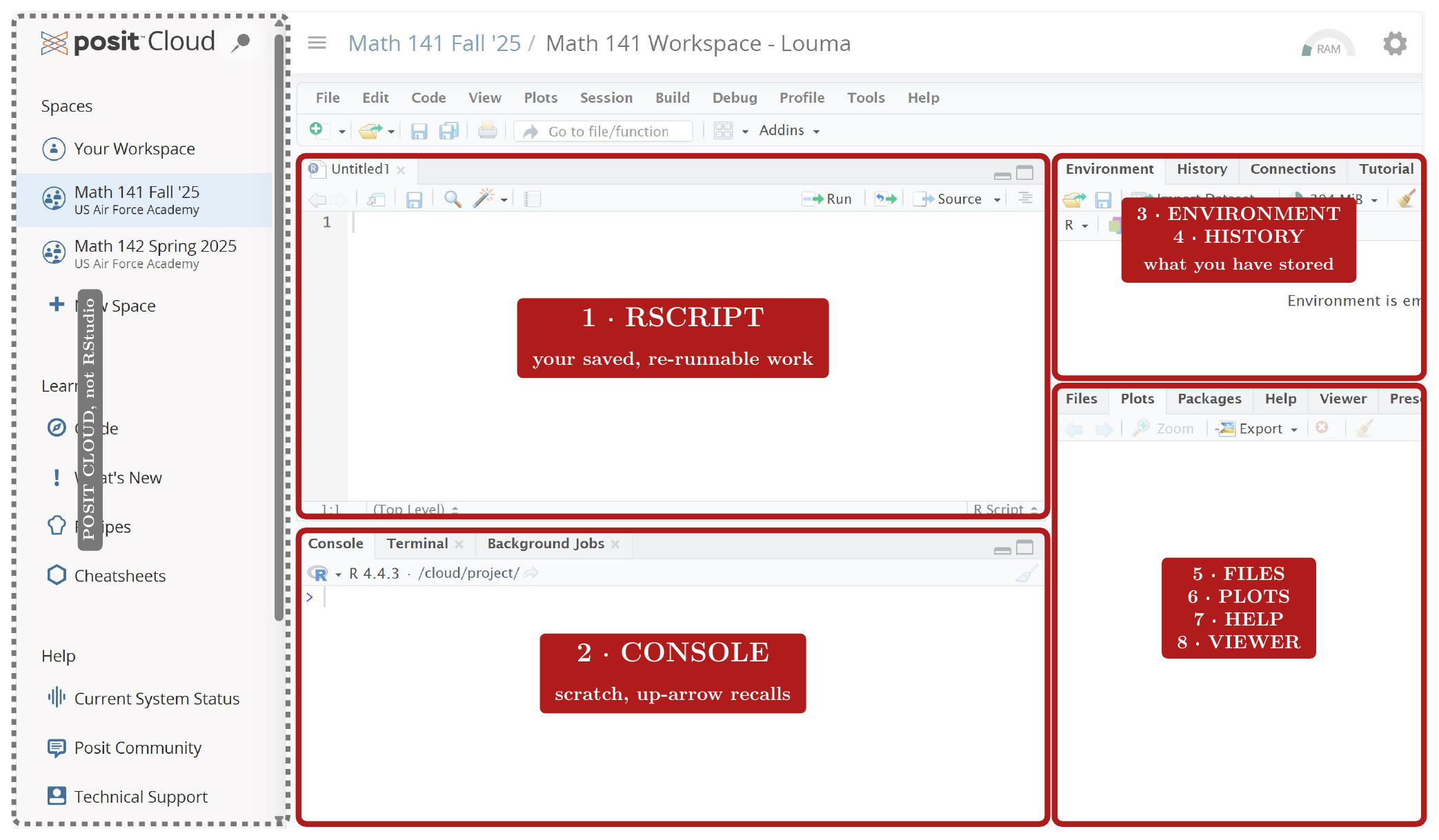
The RScript pane (1) and the Console (2) fill the left side of the RStudio window. The right side has more panes, six of them numbered 3 to 8 in the figure. On the right, the panes are tabs grouped in two boxes, and clicking a tab shows its pane. The definitions below take the panes in the figure’s order.
Definition 1 (RScript).
An RScript is a plain-text file of R commands, saved in the project, whose lines R runs in the Console, one line or the whole file at a time.
A line typed at the > prompt is not part of an RScript, because it is never saved in a file in the project.
Definition 2 (Console).
The Console is the RStudio pane where R reads a command typed at the > prompt, runs it, and prints its result beneath it when there is one.
The RScript pane is not the Console, although it also shows R commands. In the RScript pane, Enter starts a new line of the file and runs nothing.
Definition 3 (Environment).
The Environment is the RStudio pane that lists every name stored in the current session, with its value. A value is stored under a name by assignment (section 3).
The result of 2 + 3 typed at the prompt does not appear in the Environment, because no name stores it. The Console prints the result, and the Environment stays as it was.
Definition 4 (History).
The History is the RStudio pane that lists the commands run in the Console, in the order run.
A command typed at the prompt but not yet run does not appear in the History, because the History lists only commands that ran.
Files is the RStudio pane that shows the folders and files of the Posit Cloud project.
Definition 5 (Plots).
Plots is the RStudio pane that displays the graphs R draws.
The number that sqrt(16) returns does not appear in Plots, because it is not a graph. The Console prints it.
Definition 6 (Help).
Help is the RStudio pane that displays the documentation page for an R function.
To open the page for sqrt, type ?sqrt in the Console. The line sqrt(16) opens no page in Help, because it runs the function rather than asking for its documentation.
The Viewer is the RStudio pane that displays web content R produces.
Console keys.
To recall a command from the History, press the up arrow for the previous command and the down arrow for the next. The recalled command appears at the > prompt, where it can be edited and run again.
To list the past commands that begin with the text already typed at the prompt, press Ctrl+up.
To clear the Console display, press Ctrl+L. Every stored name and value stays in the Environment.
To discard the command typed at the prompt without running it, press Esc.
The + prompt. A + in place of the > prompt means R is still waiting for the rest of a line. The missing piece is usually a closing parenthesis or quote. Type the missing parenthesis and press Enter to complete the line.
> sqrt(9
+
Example 1
Run the line sqrt(16) and then the line ?sqrt in the Console. Name the pane that shows each item: (a) the result of sqrt(16), (b) the documentation page for sqrt, and (c) the list of both lines in the order run.
ShowHide solution
- (a) By the definition of the Console, R prints the result beneath the command, in the Console (pane 2):
[1] 4. The[1]is R’s label for the first value of a result. - (b) By the definition of Help, the documentation page for
sqrtappears in the Help pane (pane 7). - (c) By the definition of the History, the History pane (pane 4) lists
sqrt(16)and then?sqrt, in the order run.
Example 2
Earlier in a session, the line (2 + 3) * 4 ran in the Console, and then the Console display was cleared with Ctrl+L. Find that line again and run it a second time.
ShowHide solution
The History pane still lists (2 + 3) * 4, because clearing the Console display removes no command from the History. Press the up arrow at the > prompt until (2 + 3) * 4 appears, then press Enter. The Console prints [1] 20, the same result as the first run.
Next: 2. Computing in RLesson map
2. Computing in R
Objective. Compute quantities in R using basic operations (addition, subtraction, multiplication, division, exponents).
| Description | Handwritten | R Code |
|---|---|---|
| Add, subtract | , | a + b, a - b |
| Multiply, divide | , | a * b, a / b |
| Square root | sqrt(x) | |
| General (th) root, | x^(1/n) | |
| Natural exponential | exp(x) | |
| Natural logarithm | log(x) | |
| General power | x^n | |
| Absolute value | abs(x) | |
| Sine, cosine (radians) | , | sin(x), cos(x) |
| Pi | pi |
Translating handwritten math.
Write every multiplication with
*, because R has no implied multiplication. The product is3*(2+6).> 3(2+6) Error: attempt to apply non-function > 4x Error: unexpected symbol in "4x"
R reads
3(as a call to a function named3. R reads4xas the number 4 and the namexwith no operator between them.
Write as
exp(x), because R has no stored namee. For example, isexp(2), and the number isexp(1).> e^2 Error: object 'e' not found
Write as
log(x), because R names the natural logarithmlog.> ln(12) Error in ln(12) : could not find function "ln"
Type each function name exactly as the notation table writes it, capitals included, because R treats
sqrtandSqrtas different names.> Sqrt(4) Error in Sqrt(4) : could not find function "Sqrt"
Type parentheses wherever a fraction bar, a radical, or a raised exponent groups terms on paper: is
6^(3*(-3)). R otherwise follows the standard order of operations from algebra.2 + 3 * 4prints 14(2 + 3) * 4prints 20-3^2prints -9(-3)^2prints 9R computes an exponent before a minus sign in front of it. Thus the line
-3^2computes .
Example 3
Compute each quantity in R:
ShowHide solution
Type each quantity as one line. In (d), the cube root is the power, and the parentheses around the numerator make R divide the whole difference by .
-4*3 - 2
abs(8*5^2 - 5*8^2)
5^(-3) + 6^(3*(-3))
(pi^2 - 7^(1/3))/1.41
1/exp(1)
The five lines print [1] -14, [1] 120, [1] 0.008000099, [1] 5.643031, and [1] 0.3678794. Rounded to three decimals, the values are (a) , (b) , (c) , (d) , and (e) . As a check on (e), the line exp(-1) prints [1] 0.3678794 too, because .
Example 4
Compute in R:
ShowHide solution
Put the numerator and the denominator each in parentheses, because the fraction bar groups each sum:
(8*7 + 1.25)/(2.5 + 3.7)
The line prints [1] 9.233871, about . Without the parentheses, 8*7 + 1.25/2.5 + 3.7 divides only by and prints [1] 60.2.
Example 5
Each typed line is meant to compute the handwritten quantity. Find the error in each line and fix it.
| Handwritten | Typed | |
| (a) | sqrt(3) + 8 | |
| (b) | 6/2*3 + 8 |
ShowHide solution
- (a) The sum goes inside
sqrt(), because the radical covers . The corrected linesqrt(3 + 8)prints[1] 3.316625, about . The typed line runs with no error and prints the wrong value,[1] 9.732051. - (b) The denominator goes in parentheses, because the fraction bar divides by the whole sum . The corrected line
6/(2*3 + 8)prints[1] 0.4285714, about . The typed line runs with no error and prints the wrong value,[1] 17.
Undefined results. R returns one of two kinds of value for an undefined calculation.
Infinite result
> 1/0
[1] Inf
> log(0)
[1] -Inf
R uses the numeric values Inf and -Inf for positive and negative infinity.
Not a number
> log(-1)
[1] NaN
Warning message:
In log(-1) : NaNs produced
R returns NaN, “not a number”, for an undefined calculation whose result is neither Inf nor -Inf.
Roots of negative numbers. For , the line x^(1/n) gives the th root of . For and , R returns NaN, even when is odd and the real root exists. The real cube root of is , and R still prints NaN:
> (-8)^(1/3)
[1] NaN
Next: 3. Naming and Storing QuantitiesLesson map
3. Naming and Storing Quantities
Objective. Understand naming rules in R, assign names to quantities, and identify where those quantities are stored in the environment.
Definition 7 (Assignment).
Assignment is storing the value of an expression under a name. The name goes on the left of = and the expression on the right:
R computes the value of the right side, stores it under the name, and prints nothing. The Environment then lists the name with its value.
The line 5 = a is not an assignment, because the definition puts the name on the left of =. R stops with an error and stores nothing:
> 5 = a
Error in 5 = a : invalid (do_set) left-hand side to assignment
Naming rules.
- A name starts with a letter, or with a dot not followed by a digit. A digit or an underscore cannot come first.
- A name contains only letters, digits, dots (
.), and_(underscore). - A name cannot be a reserved word, such as
if,in,else,repeat,while,function,for,next,break,TRUE,FALSE,NULL,Inf,NaN,NA.
Case sensitivity. R treats an uppercase letter and its lowercase letter as different characters, so Total, total, and TOTAL are three different names.
Function names as quantity names. A value stored under the name of an existing function, such as c or sum, raises no error. The name alone then gives the stored value, and the name followed by parentheses still calls the function: after c = 8, the line c prints [1] 8, and c(1, 5, 4) still lists 1, 5, and 4.
Second assignment to a name. A second assignment to a name replaces the old value with no warning.
Listing and deleting.
To list the name of every quantity stored in the Environment, type ls().
To remove the name a and its value from the Environment, type rm(a).
To remove every name from the Environment, type rm(list = ls()) or click the broom icon in the Environment pane.
Example 6
Determine which lines store the value 8 and which stop with an error.
Snowangel7711 = 8 Snowangel 7711 = 8 Snowangel_7711 = 8
7711Snowangel = 8 Snowangel.7711 = 8 FALSE = 8
ShowHide solution
The names Snowangel7711, Snowangel_7711, and Snowangel.7711 are allowed names, because each starts with a letter and contains only letters, digits, dots, and the character _. The other three lines stop with an error:
> Snowangel 7711 = 8
Error: unexpected numeric constant in "Snowangel 7711"
> 7711Snowangel = 8
Error: unexpected symbol in "7711Snowangel"
> FALSE = 8
Error in FALSE = 8 : invalid (do_set) left-hand side to assignment
The text Snowangel 7711 contains a space, 7711Snowangel starts with a digit, and FALSE is a reserved word.
Example 7
Store the three quantities under the names a, b, and c, and find where R stores them.
ShowHide solution
By the definition of assignment, each line puts the name on the left of = and the expression on the right.
a = -4*3 - 2
b = abs(8*5^2 - 5*8^2)
c = 5^(-3) + 6^(3*(-3))
The three lines print nothing. R stores a, b, and c in the Environment, which lists each name beside its value. The row for a shows , because
Next: 4. Using Stored QuantitiesLesson map
4. Using Stored Quantities
Objective. Call the name of a stored quantity to show it in the console, and perform calculations using previously stored quantities.
In a calculation, R replaces each stored name with its stored value.
Example 8
For the quantities
compute and .
ShowHide solution
Store , , and as in Example 7, then type each expression with the stored names:
a = -4*3 - 2
b = abs(8*5^2 - 5*8^2)
c = 5^(-3) + 6^(3*(-3))
a*b - c
b + c + 2
The last two lines print [1] -1680.008 and [1] 122.008: and .
Example 9
For and , show the value of in the Console, and compute .
ShowHide solution
When f + 11 comes before f is stored, R stops with an error:
> f + 11
Error: object 'f' not found
The message means that no quantity is stored under the name f, and the Environment lists no f. To fix the error, store f first. To show the stored value, type the name alone:
a = -14
b = 120
f = a^b
f
f + 11
The last two lines both print [1] 3.430554e+137, R’s notation for . At that size, adding 11 leaves the printed digits unchanged.
Scientific notation. R prints a very large or very small number in scientific notation: e+137 means times , and e-05 means times . The e in the printout is not the number .
Example 10
Evaluate the expression at :
ShowHide solution
Store first, then type the expression with each grouping in parentheses: the radicand of each root, the factor , and the whole denominator.
x = 4
(x^2)^(1/3)*(1 + sqrt(2 + x))/(log(x) + cos(2*x))
The last line prints [1] 7.005327, about .